Set staffing requirements on a Schedule Board
Last updated August 28, 2026
Staffing requirements define the work that your team must cover. They are separate from the schedule, so you can compare required and scheduled capacity.
Before you start
- Make sure that you can edit the Schedule Board.
- Create the roles, activities, workstreams, and skills that you want to use.
- Connect the required forecast datasets if you want to use forecast values.
Add a staffing need
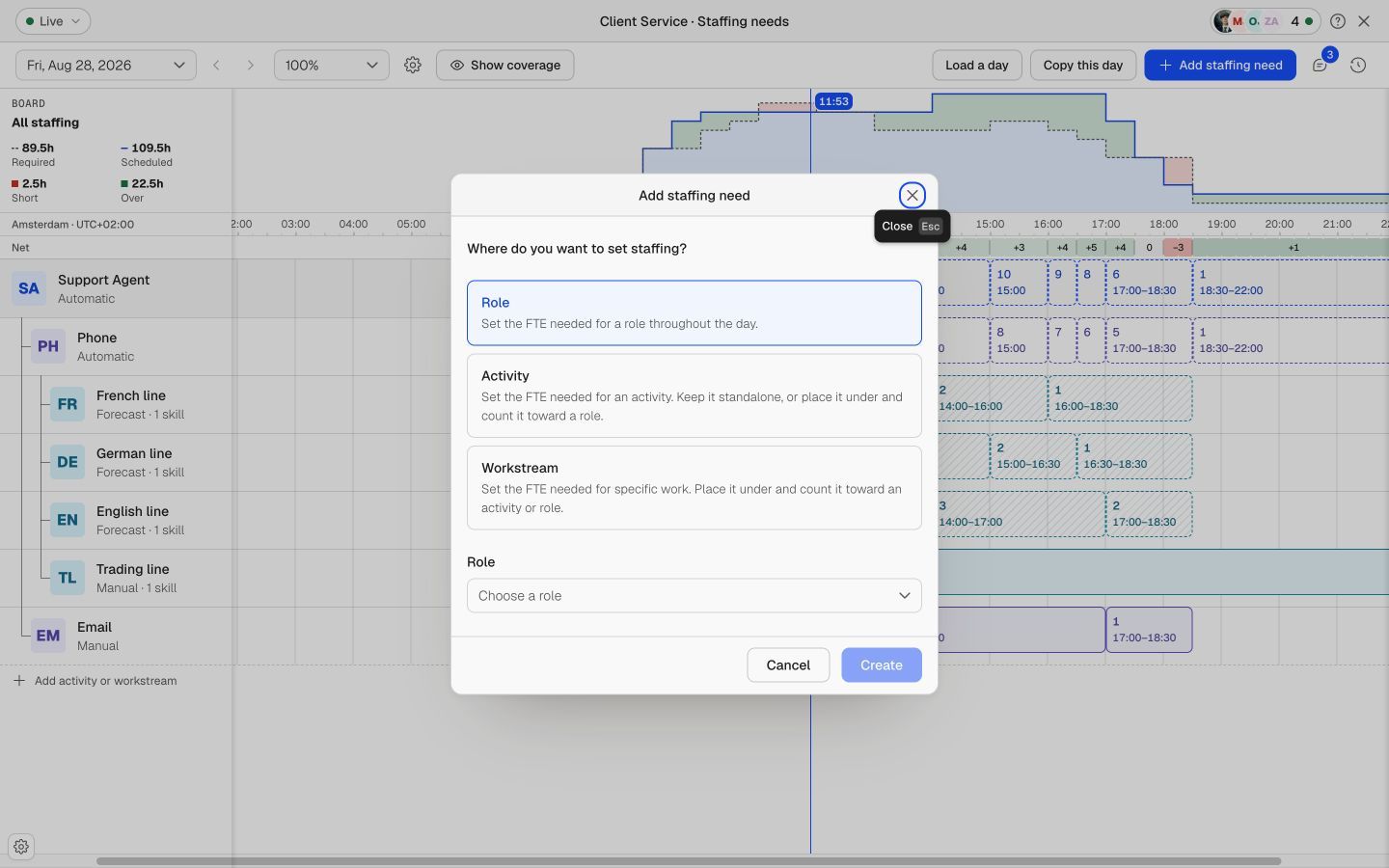
- Open the Schedule Board and select Staffing requirements.
- Select Add staffing need.
- Select a need type: Role, Activity, or Workstream.
- Select the item that you want to add. For an activity or workstream, also select the parent line in Counts toward.
- Select Create. The new line appears on the board.
An activity can stand alone or count toward a role. A workstream must count toward an activity or role. The Counts toward value controls where the line appears and how its demand contributes to its parent.
Set the required people and time
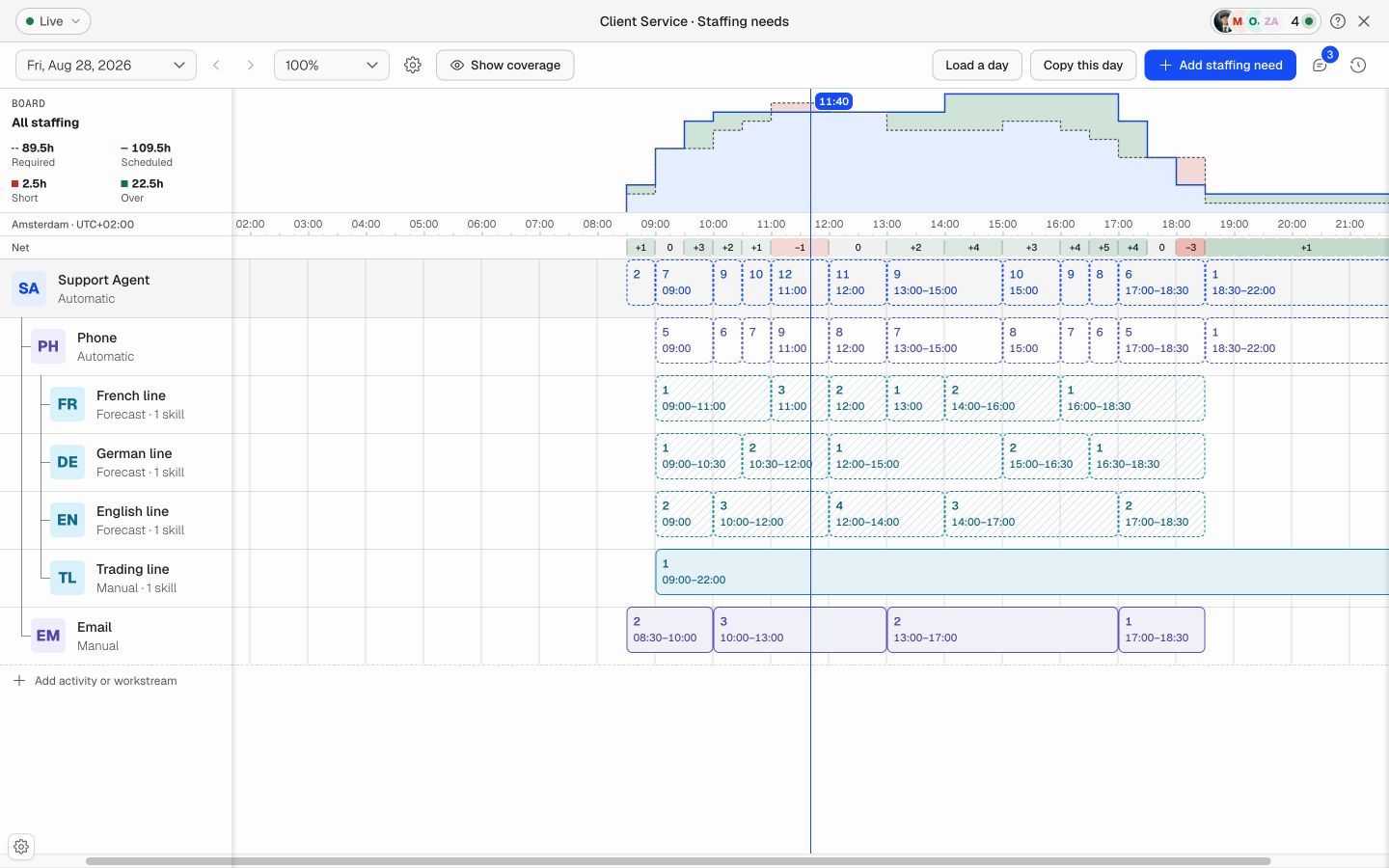
- Select the requirement line.
- Open Details and set the source, required FTE, start time, and end time.
- Add more time slots if the required value changes during the day. You can also draw, move, and resize manual demand bars on the timeline.
- Select Save to apply all staged changes.
The planning interval can be 15, 30, or 60 minutes. Use the interval that gives you enough detail without making the plan difficult to maintain.
Choose Manual or Forecast
- Manual: Set and edit the demand on the timeline or in Details.
- Forecast: Use values from connected forecast datasets. Forecast bars are read-only on the timeline. Use Details for allowed adjustments.
Understand automatic parent totals
A parent line uses the greater of its own required value and the productive work below it. This prevents duplicate demand. For example, if a role needs 10 FTE and its workstreams total 12 FTE, the effective role demand is 12 FTE.
Required skills do not add demand. They define which scheduled people qualify for coverage.
Reuse a day
Use Load a day or Copy this day to reuse an existing setup. Review the copied requirements before you save them.