Skills: track what your team can do
Last updated August 25, 2026
Skills is a tab under Users where you keep a record of what your team can do. A skill is any qualification a person holds: a licence, a language, a machine, a system, a training. Define it once, record who holds it and at what level, and set when a certificate runs out. One place that stays current, instead of a spreadsheet.
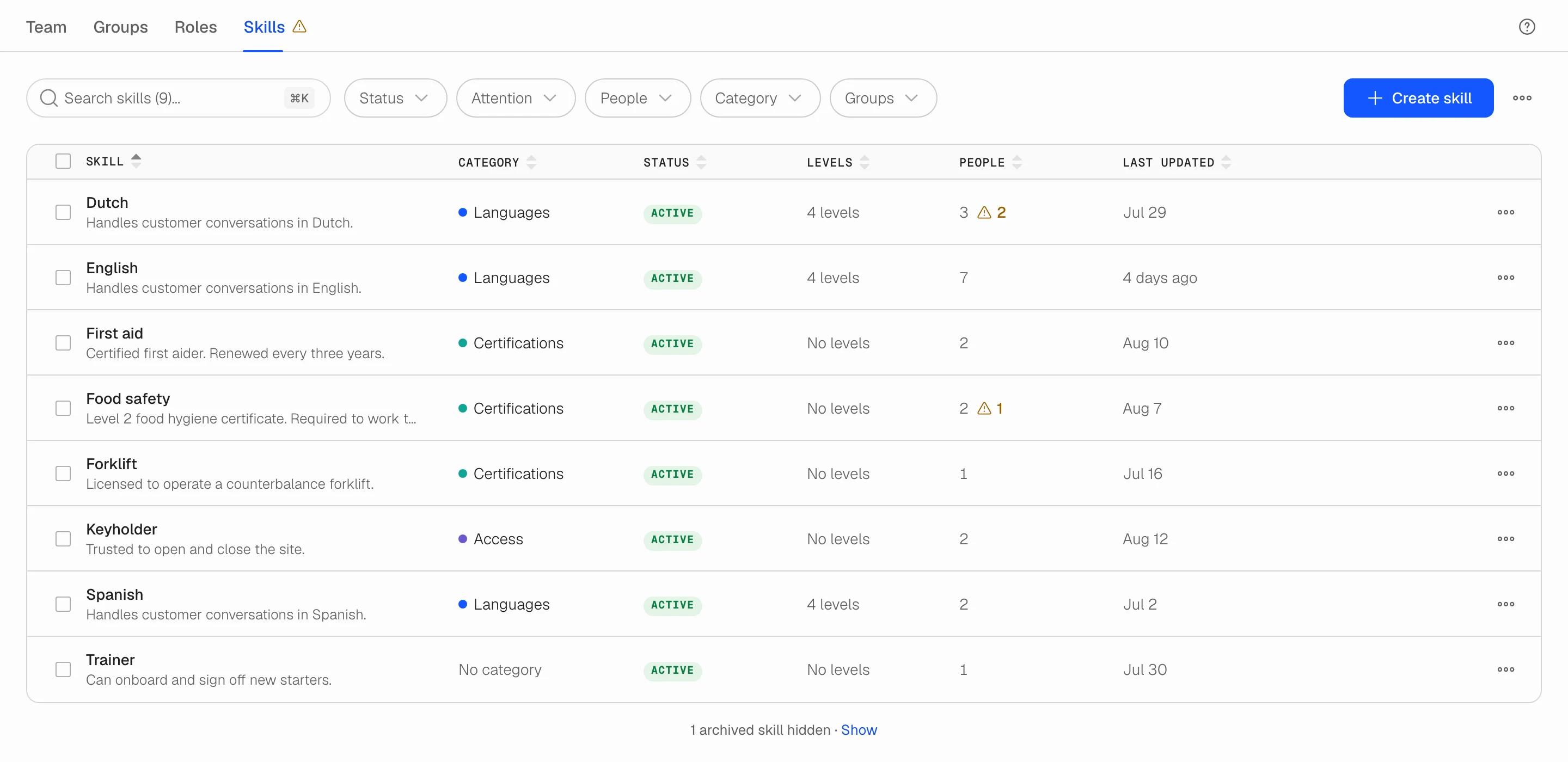
Where to find it
Open Users from the main navigation and go to the Skills tab. It sits next to Team, Groups and Roles.
Only team owners and admins can open the Skills tab. Members do not see it. Skills is available on every plan.
What a skill is, and what it is not
Soon keeps four different kinds of people settings apart, and it helps to know which one you need:
- Access role (owner, admin, member) controls what someone can do in Soon. Managed on the Team tab.
- Shift role is the job on a shift: Shift leader, Cashier, Agent. Managed on the Roles tab.
- Group is a bucket of people: a department, a location, a shift type. Managed on the Groups tab.
- Skill is a qualification a person holds: French at B2, First aid valid until next March, Forklift. Managed on the Skills tab.
A skill carries no headcount and no time. It describes who is qualified, not how many people you need.
The Skills table
Each row is one skill. The columns are:
- Skill: the name, its two-character code and its description.
- Category: an optional, colour-coded grouping you create yourself, such as Languages or Certificates.
- Status: Active or Archived.
- Levels: the ordered scale, if the skill has one (for example A2, B1, B2, C1). Most skills have none; people either hold them or not.
- People: how many people hold the skill. An amber mark here means someone needs attention: a certificate has expired, or a person was added to a levelled skill and never given a level.
- Last updated: when the skill or its people last changed.
Click a row to open the skill. The panel has three tabs: Details (name, code, category, description, levels), People (who holds it, at what level, valid from and until) and Activity (every change, who made it and when).
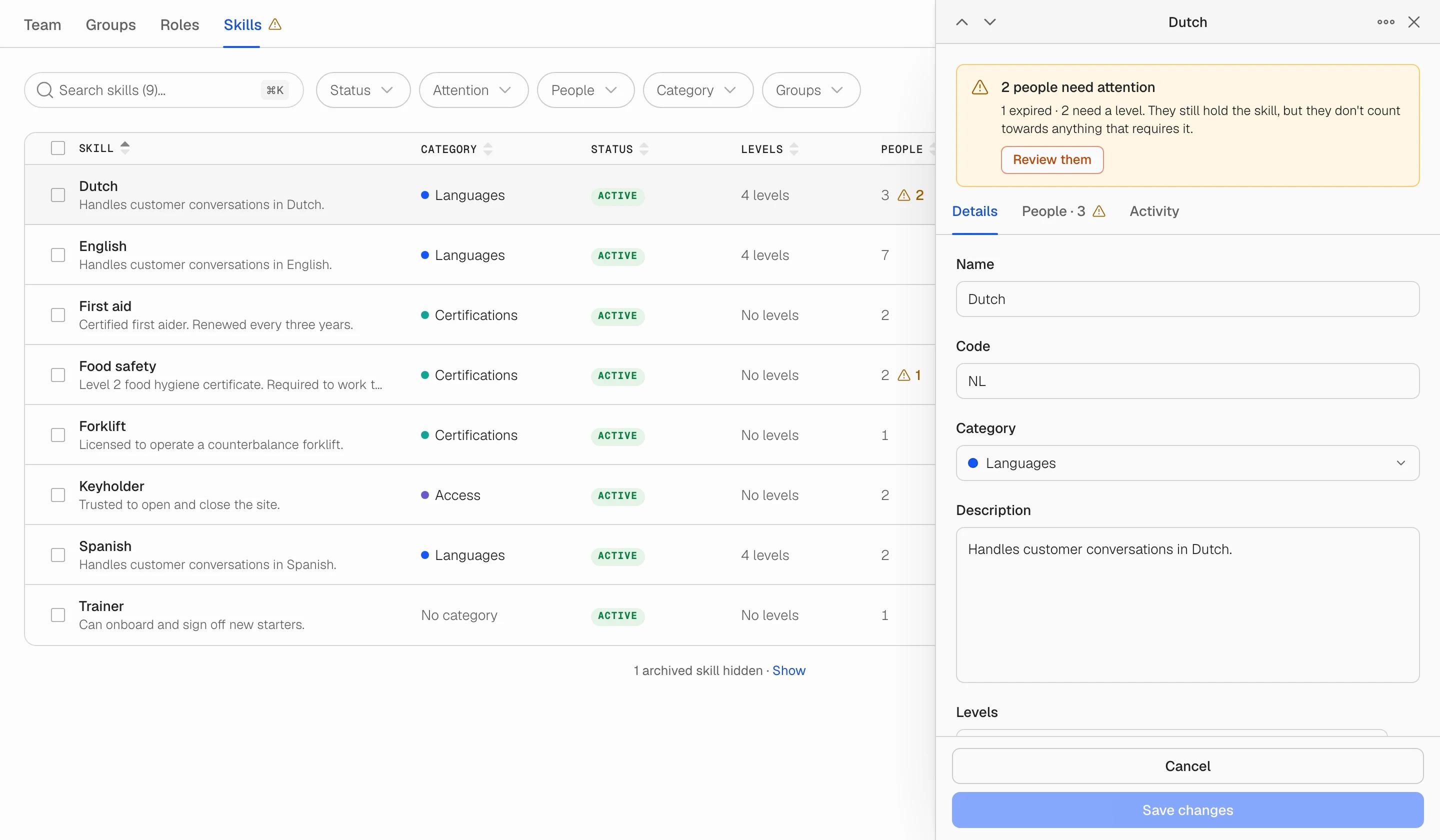
Search, filter, sort and export
Search by name or description. Press Cmd+K or Ctrl+K to jump to the search field from anywhere on the page. Filter by category, status or attention, and sort by any column.
Export CSV downloads the rows currently visible, including each skill's code, category, levels and holder count, so you can share the catalogue or check it outside Soon.
Next steps
Create a skill, then add people and set levels and expiry dates. If a skill comes in degrees, read about skill levels. When a skill is no longer needed, see archive or delete a skill.