Add people to a skill and set levels and expiry dates
Last updated August 19, 2026
Every skill has a People tab: the list of who holds it, and for each person their level (if the skill has a scale), a valid-from date and a valid-until date. Open a skill from the Skills table under Users to get there.
Add people
- Open the skill and go to People.
- Click Add people and pick from your team. You can also invite someone new to the team from the same picker.
- For each person, optionally pick a level and set Valid from and Valid until.
- Save changes.
You can also add people to several skills at once: select the skills in the table, open Actions and choose Add people. Existing holders keep their level and dates; only new holders are added, without a level, so you can grade them afterwards.
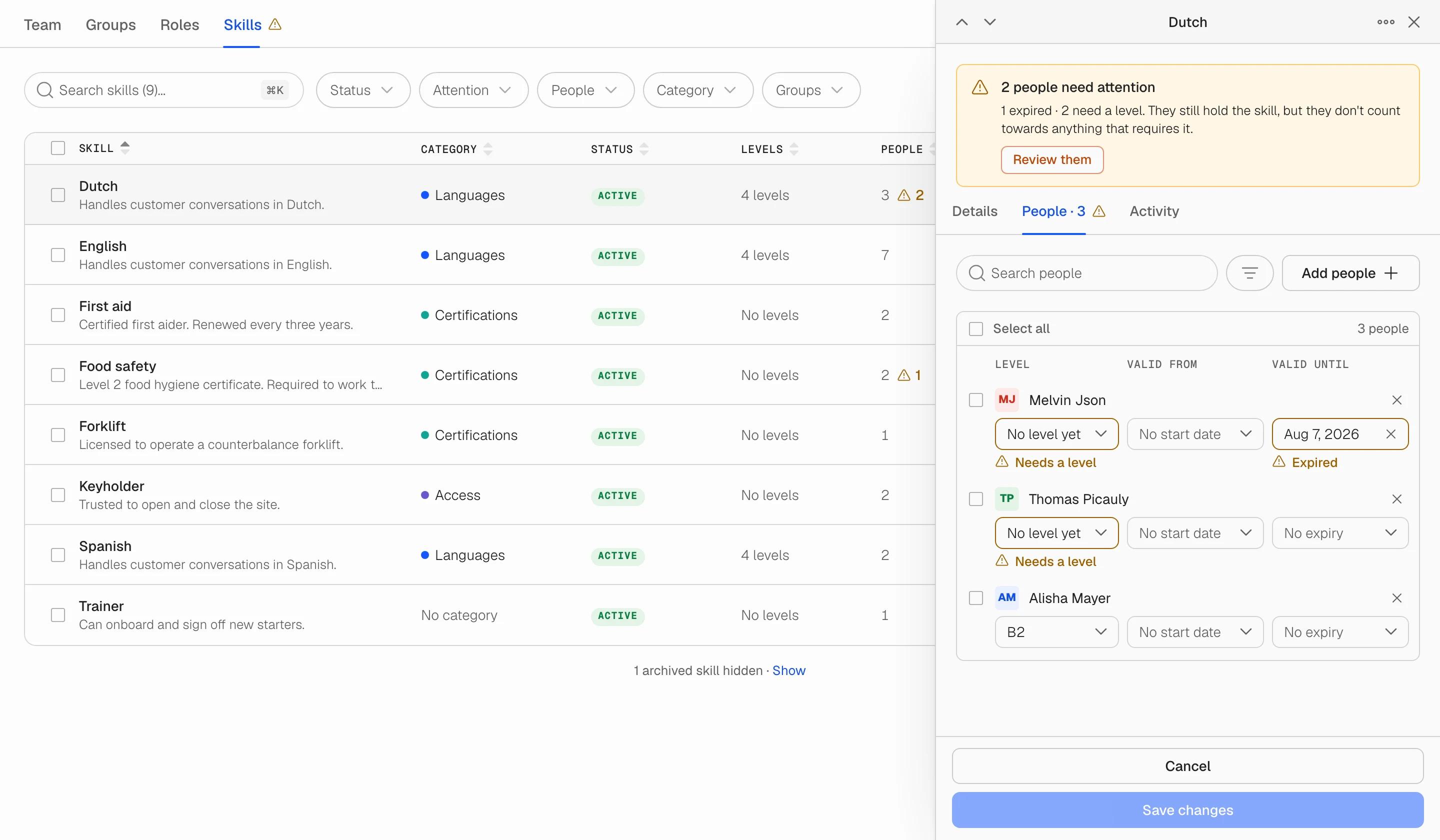
Validity dates and expired certificates
Both dates are optional. Leave them empty if the skill never runs out. Set Valid until for anything that has to be renewed: a first aid certificate, a forklift licence, a food hygiene course.
When the date passes, the person is not removed from the skill. They still hold it; it just no longer counts as valid. Their row shows Expired with the date, the skill's People column shows an amber mark, and the Attention filter lists every skill with an expired holder. Renewing is editing one date.
A Valid-from date in the future shows as scheduled: the person holds the skill, it becomes valid on that day.
Following up on attention marks
When something needs attention (an expired certificate or a person who needs a level) the Skills tab itself carries an amber mark, so you can see it from the Team tab. Open Skills, use the Attention filter, open the skill and click Review them. The People list puts the flagged people first, and each flagged field explains itself. Fixing the field clears the mark straight away.
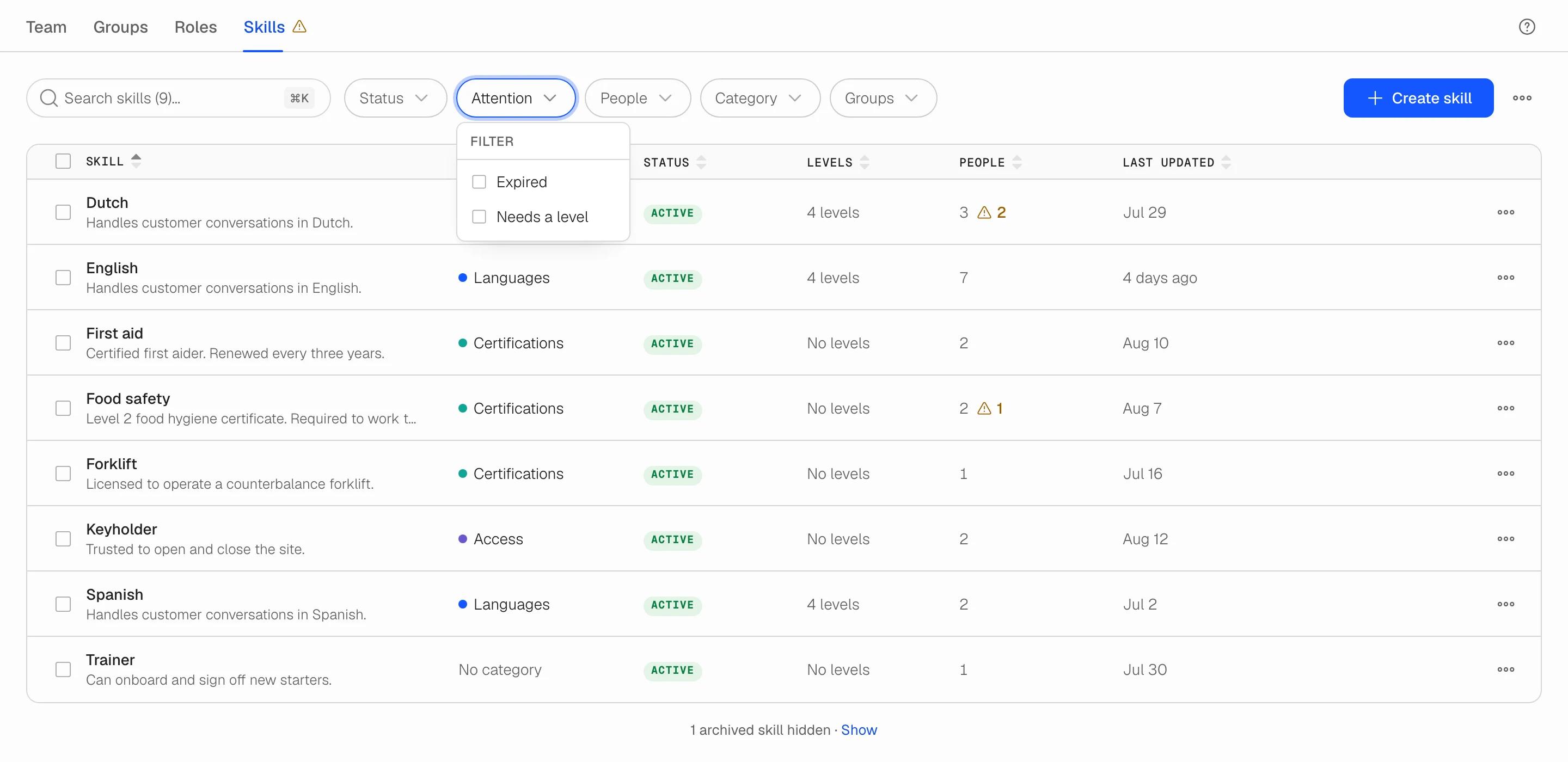
Remove a person from a skill
On the People tab, use the cross on the person's row, or select several and choose Remove people. Removing someone drops their level and dates for that skill. The Activity tab keeps the record of who was added and removed, and when.
Find people by skill on the Team tab
The Team tab has a Skills filter. It matches everyone who holds the skill, including people whose certificate has expired, because the question it answers is who has been trained, not who is valid today. Check the person's skill record for validity.