Skill levels
Last updated August 25, 2026
Most skills have no levels. Someone either holds a forklift licence or does not. Some skills come in degrees: a language at A2, B1, B2 or C1; a system at basic, advanced or trainer. For those, give the skill a scale.
Adding a scale
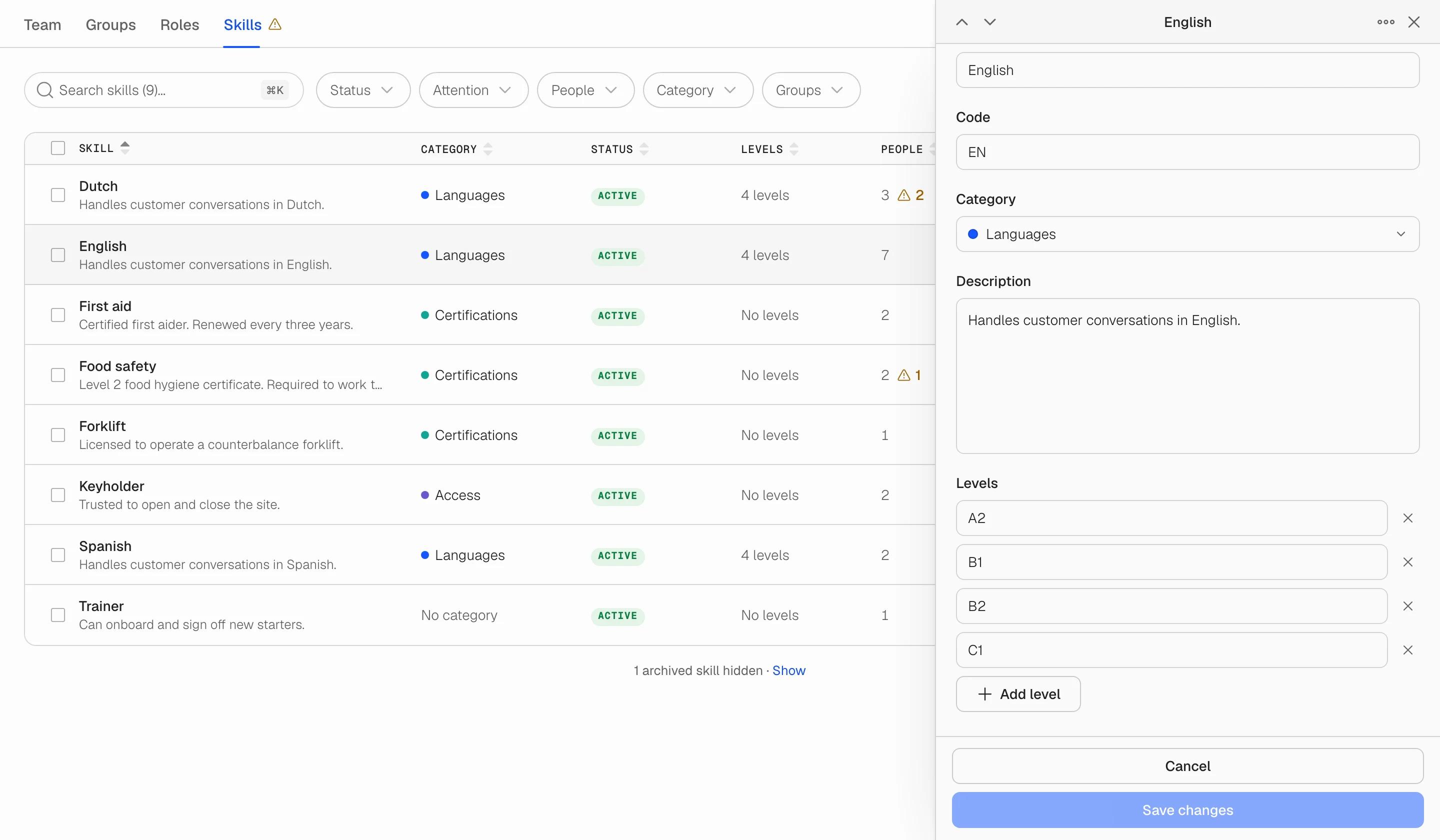
Open the skill (or the Create skill dialog) and go to Details. Under Levels, click Add level and type the first level. Keep adding until the scale is complete.
- List levels from lowest to highest, top to bottom. Soon does not label which end is which; the order you enter is the order it keeps.
- New levels are always added at the end. There is no reordering, because people are attached to a level by its position in the scale.
- A scale can have up to 8 levels, each up to 24 characters. Level names must be unique within the skill.
Renaming a level
You can rename any level at any time, whether or not people hold it. A rename is a relabel, not a regrade: everyone at that level moves to the new name in the same save. The Activity tab records the rename (for example, renamed the B2 level to B2+).
Removing a level
Remove a level with the cross on its row. Soon never blocks a removal, but before saving it tells you how many people are graded at that level and that they will lose it. If you want to keep their record, rename the level instead.
Needs a level
A person can hold a levelled skill without a level yet. This is normal when you add five people to French first and grade them afterwards. Soon never assigns a level on your behalf. Instead the person's row shows Needs a level, the skill's People column shows an amber mark with a count, and the Attention filter narrows the table to skills that have someone to grade. Open the skill, go to People, pick a level from the dropdown and save.
Skills without a scale
If a skill has no levels, the People tab simply does not show a level column. Adding a scale later turns the column on; everyone already holding the skill then shows Needs a level until you grade them.