How to create a skill
Last updated August 19, 2026
Skills live under Users in the Skills tab. You need to be a team owner or admin.
Create a skill
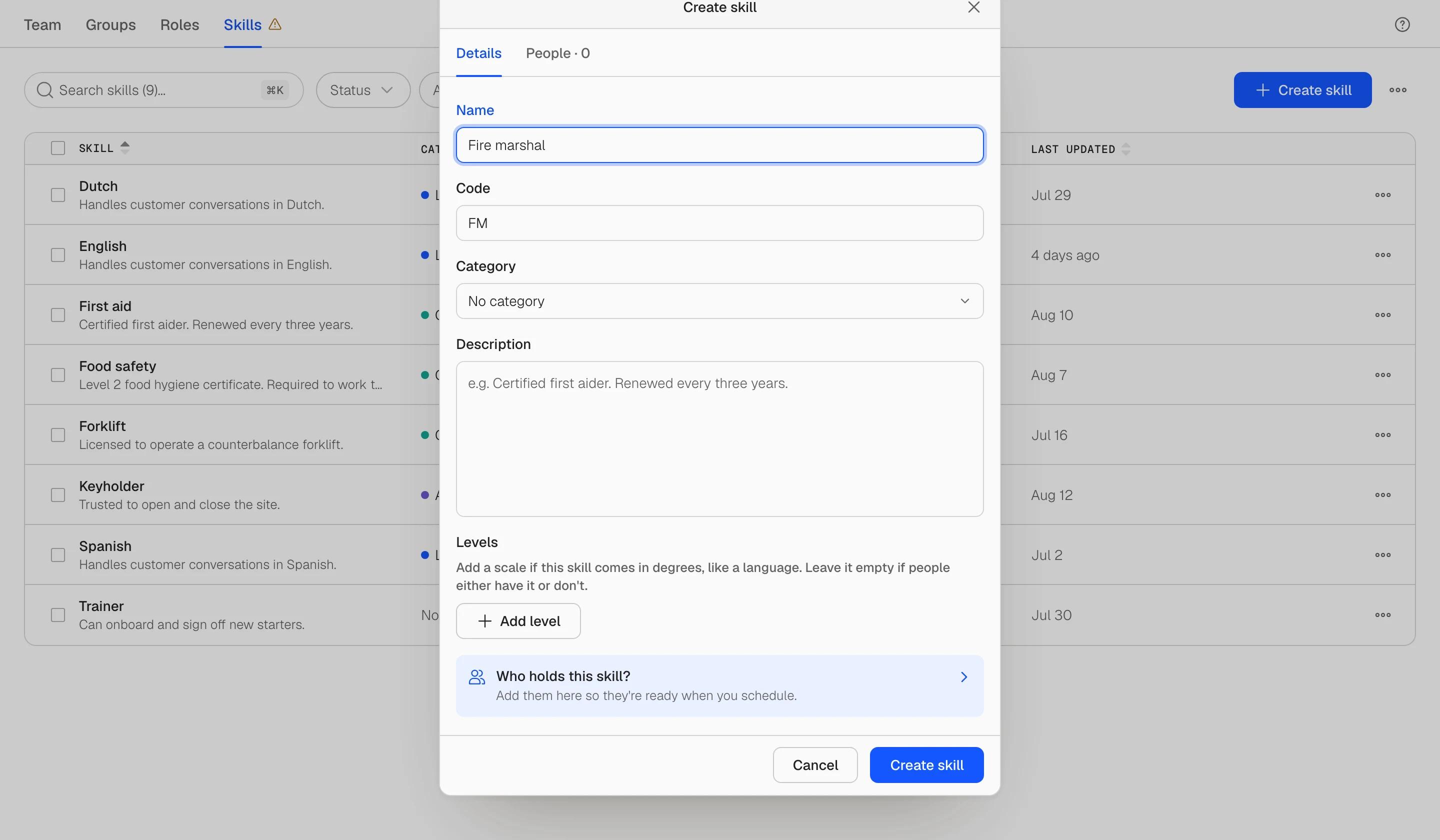
- Open the Skills tab and click Create skill in the top right. If you have no skills yet, the empty state has the same button.
- Enter a name. Names must be unique. If a very similar skill already exists (Forklift and Forklifts, for example) Soon warns you but lets you continue.
- Check the code. Soon suggests a one- or two-character code from the name, such as EN for English or FA for First aid. You can change it. Codes are upper-case letters or digits, at most two characters, and unique across your skills.
- Pick a category (optional). Choose an existing one, or choose New category to create one with its own colour. Categories are how the Category column becomes readable at a glance: all languages one colour, all certificates another.
- Add a description (optional). A line about what the skill means in your operation, what it covers or who issues the certificate.
- Add levels (optional). If the skill comes in degrees, like a language, add a scale: A2, B1, B2, C1. If people either have it or do not, leave it empty. See skill levels.
- Add people (optional). On the People tab of the dialog, pick who already holds the skill. You can set their level and validity dates right away.
- Click Create skill. On desktop the skill opens in the side panel so you can keep configuring it.
About the code
The code is the short identity other parts of Soon show for the skill, the way initials stand in for a person. It is stored, not generated: Soon suggests one when you create the skill, but once you set it, it stays until you change it. Changing it later is recorded in the skill's Activity tab.
About categories
Categories are created, renamed, recoloured and deleted from the category picker itself. Hover a category in the list and use the pencil to edit it. Deleting a category does not delete its skills; they simply become uncategorised.
Editing a skill later
Open the skill from the table. Every change stages in the panel until you click Save changes, which writes them all at once and records them in the Activity tab. Cancel discards the draft. Archived skills stay fully editable.