Availability, rebuilt around each person's contract
Availability now starts from each person's contract. Their working days and times are the starting point, so nobody has to fill in an ordinary week; they only change the dates that are different. Planners see the whole team in a new Availability tab in Team, and everyone else sets theirs in a refreshed My Schedule. Leave is separate and works as before.
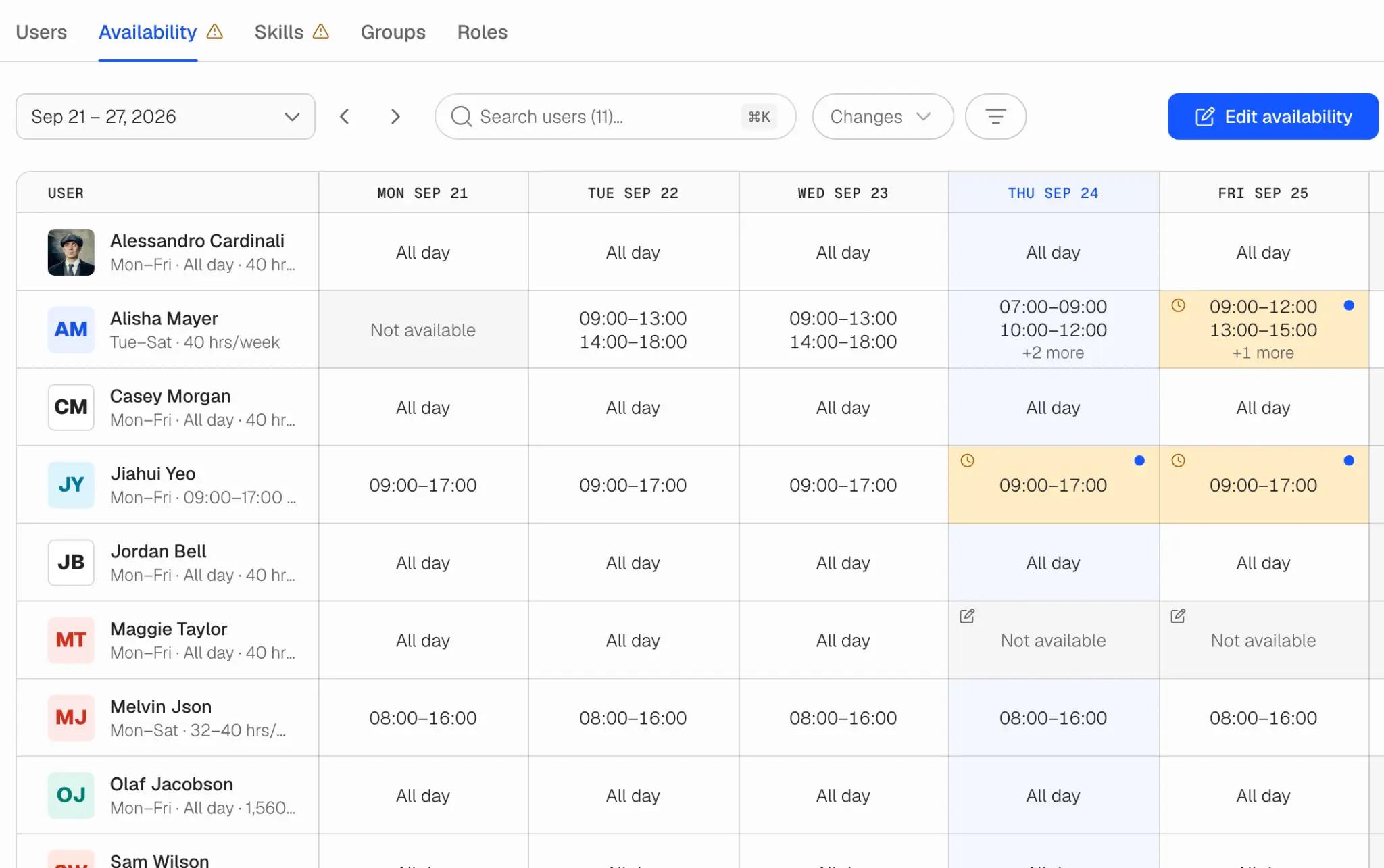
One week for the whole team
Team › Availability shows each person's week next to the contract it comes from: All day, set hours, Not available, or Not set when nothing says when they can work. Changed days and pending requests are marked in the grid, and a total under each day counts the people and hours available. Open a day to see where its hours come from and everything that happened to it.
You choose how changes happen
In Availability settings each team picks one of three rules, with exceptions for individual people:
- Colleagues request, a planner approves. The default. Each date waits for a planner, who can approve some days and decline others.
- Colleagues set it themselves. Changes take effect as soon as they are saved.
- Only planners change availability. For teams with agreed attendance. Colleagues see their availability but cannot send requests.
Settings also hold how much notice a change should give (changes with less are flagged Late, not refused), how far ahead people can enter availability, and whether the week starts on Monday or Sunday.
Preferences, without changing availability
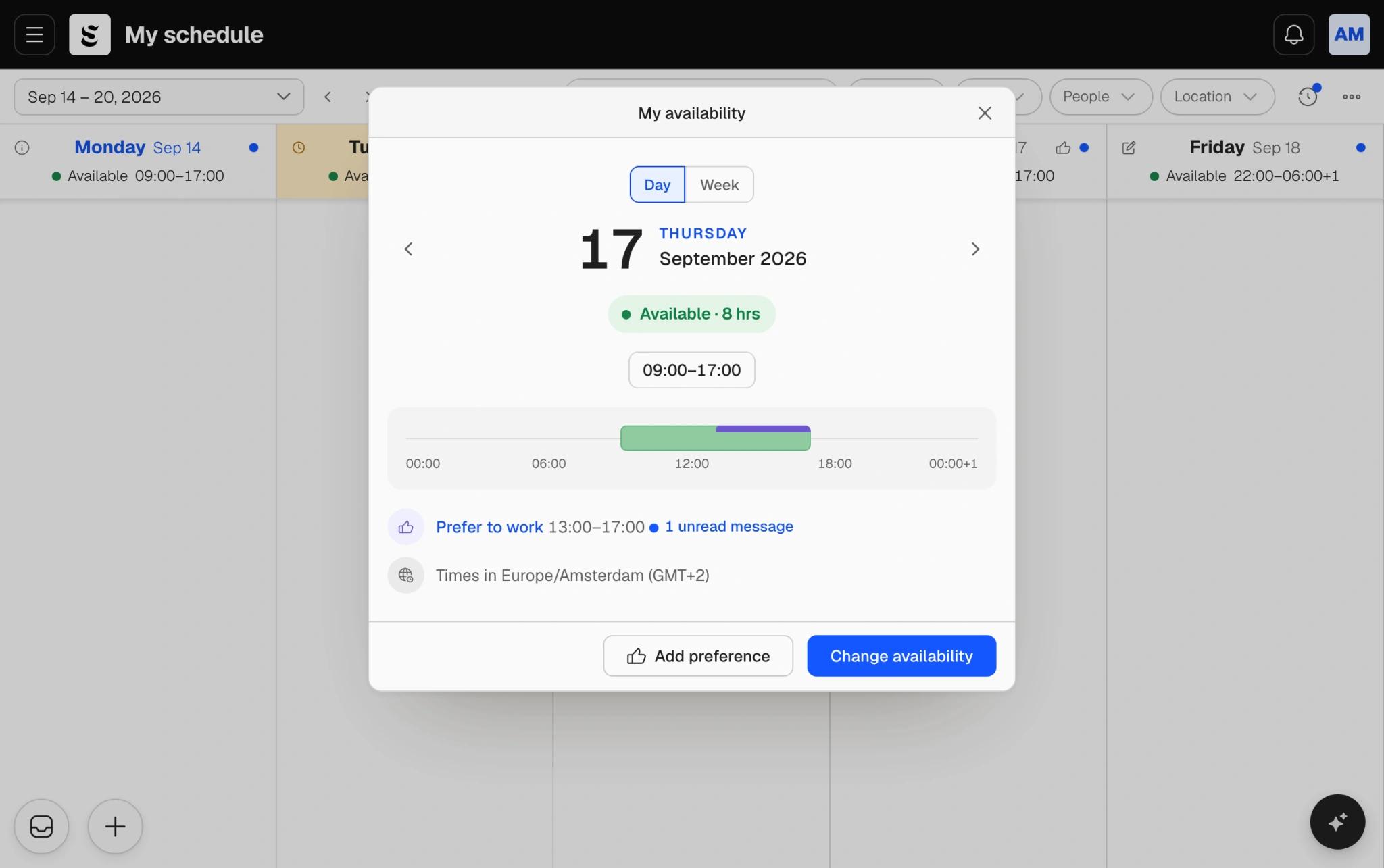
Someone can be available from 07:00 to 19:00 and still prefer mornings. Preferences say that: prefer to work, or prefer not to work, inside the hours a person is available. They save straight away, never need approval, and never change when someone can work. A team that does not want them can turn them off.
Requests you can talk through
Every request has its own messages, so the question and the answer sit next to the decision instead of in a chat thread. The Changes view lists what is waiting, soonest first, with the recent changes under it. Planners can edit the hours before approving, decide each day separately, or approve and decline several requests at once. The person is notified of the decision and reads any message on the request itself.
In My Schedule
My Schedule now opens with your availability across the top of the week. Pick a day, say the hours you can work or that you cannot, add a note, and send it. If your team asks for notice, Soon tells you before you send. Every change you make is listed with its status and the planner's reply, and you can edit or withdraw a request while it is still waiting.
When you plan
When you add people to a shift on a schedule board, the people picker reads the new availability and flags anyone the shift falls outside. Pending requests and preferences do not count as available.
What happened to availability you already had
The weekly default availability is replaced by the contract's working times, so check that each person's contract has them; anyone without them shows as Not set. Dates people had already entered for the days ahead were kept as preferences: an available date became a preference to work, and an unavailable date a preference not to work. If a date should be blocked outright, set it to Not available.
Read more in how availability works in Team, availability settings and setting your own availability in My Schedule.