How to set your availability
Last updated June 21, 2022
Your availability tells your planner when you can work. It starts from your contract: the working days and times in it are your availability unless you change a date. You never have to fill in an ordinary week, only the days that are different.
Availability is not leave. To take time off, use Request leave in My Schedule as usual. Changing your availability does not change shifts you already have either; talk to your planner about those.
Where to find it
Open My Schedule. Your availability runs across the top of the week, one cell per day:
- Hours or All day: when you can work that day.
- Not available: you cannot work, either because it is not one of your contract's working days or because you changed it.
- Not set: nothing says when you can work. Your contract has no working days, or there is no contract for that date. Set the day yourself, or ask your planner.
- Requested: you asked for a change and it is waiting for a planner.
Click a day to open it. The panel shows what your contract says, what is in force now, any preference and any request for that day.
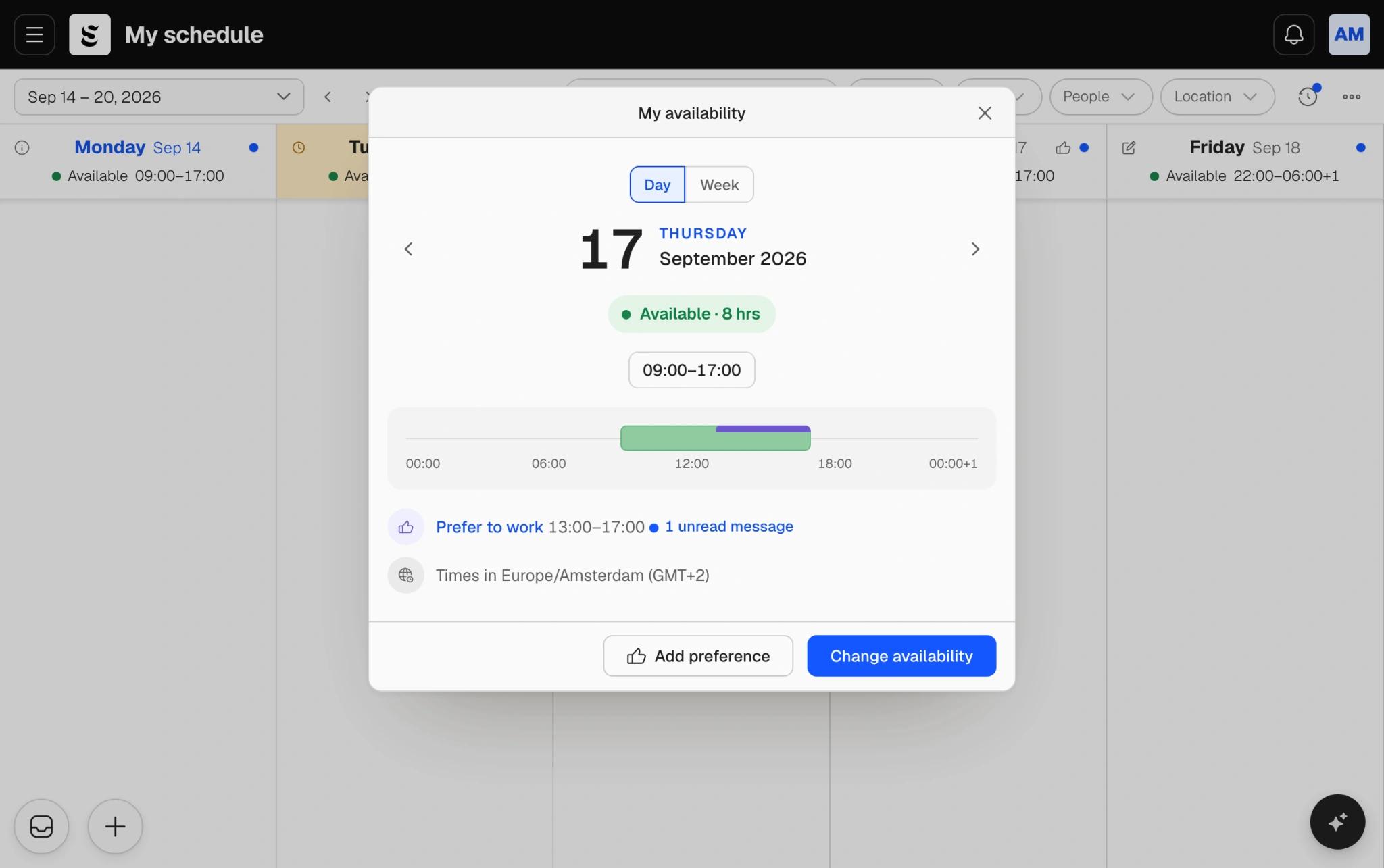
How your team handles changes
Your team chooses one of three ways. Soon tells you which applies to you when you open a day:
- A planner approves: you send a request, and nothing changes until a planner approves it. This is the most common setup.
- You set it yourself: your change takes effect as soon as you save.
- Planners only: you can see your availability but not change it. If a date is wrong, contact your planner. You can still add preferences if your team uses them.
Change your availability
- Click the day you want to change in the availability row of My Schedule.
- Change availability. If you are changing more than one date with the same hours, add them to the same set; for other hours, add another set of dates. Everything is sent together as one entry.
- Choose what applies on those dates: Available all day, Available with set hours, or Not available. With set hours you can add more than one window, for example 07:00 to 11:00 and 15:00 to 19:00. A window that ends after midnight runs into the next day.
- Add a note if it helps your planner understand the change. It is optional.
- Send request or, if your team lets you set it yourself, Set availability.
Days that have passed cannot be changed, and your team sets how many months ahead you can go. A date that already has a pending request is left out until that request is decided.
Notice
Your team may ask for a number of days' notice before a change. Soon shows it before you send. A change with less notice is still sent, but it is marked Late so your planner sees it was short notice.
Follow a request
Open Availability changes from the week toolbar in My Schedule (on a phone, it is under More). It lists every change you made, with its status: Pending, Approved, Changed, Declined, Expired or Withdrawn. Search the list or filter it by status and type.
- Days shows what you asked for on each date and what was decided. A planner can approve some days and decline others, or approve with different hours.
- Messages is a conversation with your team's admins about that request. Ask a question there, and read your planner's reply.
While a request is still pending you can edit it or withdraw it. Withdrawing leaves your availability as it was. A request expires if its last day passes without a decision.
You are notified when a planner decides your request, when a planner changes your availability for you, when a request expires, and when someone writes in its messages.
Add a preference
A preference says which of your available hours suit you best, without changing when you can work. You might be available from 07:00 to 19:00 and still prefer mornings.
- Click the day in the availability row.
- Add preference, then choose Prefer to work or Prefer not to work, all day or for set hours.
- Save preference.
Preferences save straight away and never need approval. They stay inside the hours you are available: times outside them are cut off when you save. To be available at other times, change your availability instead. Your team can turn preferences off, in which case the option does not appear.
Time zones
Times are shown in your contract's time zone. A change keeps the time zone it was saved in, even if you later view the schedule from somewhere else.
What happened to availability I entered before
The old weekly default availability is replaced by your contract's working times. Dates you had already entered for the days ahead were kept as preferences: an available date became a preference to work, and an unavailable date a preference not to work. If you cannot work on one of those dates, change your availability to Not available.
For planners
Planners review requests and set availability for people in Team › Availability, and choose the team's rules in availability settings. Time off goes through leave.