Team availability: see, set and approve when people can work
Last updated October 1, 2026
Availability is when a person can work. In Soon it starts from their contract: the working days and times on the contract are their availability unless something changes a date. Planners see and manage it for the whole team in the Availability tab; everyone else sets their own in My Schedule.
Availability is not leave, and it does not move shifts. Time off still goes through leave, and changing someone's availability leaves the shifts they already have where they are.
Where to find it
Open Team and go to the Availability tab, next to Users and Skills. Owners and admins can open it; in Soon, they are the planners. Members see their own availability in My Schedule instead.
The week grid
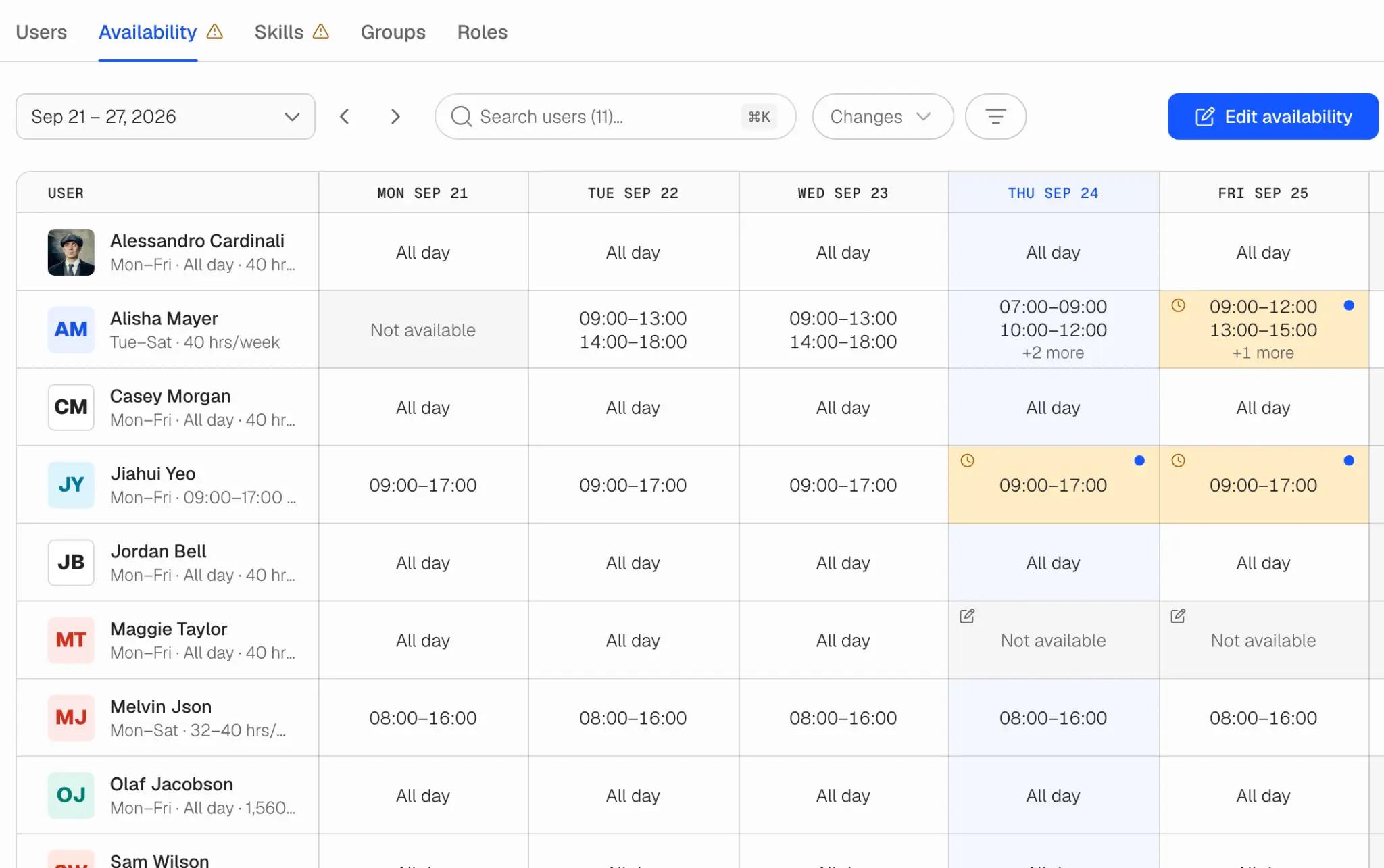
Each row is a person, each column a day of the week you have chosen. Under each name is a summary of their contract, such as Mon–Fri · 09:00–17:00 · 40 hrs/week. A cell shows one of:
- All day or hours: when the person can work. Several windows show as the first ones and a +more count.
- Not available: not one of the contract's working days, or changed to not available.
- Not set: nothing says when they can work. Either the contract has no working days, so the person says when they can work, or no contract is in force on that date. Set the day, or add a contract on the Users tab.
A pencil marks a day that was changed from the contract. A highlighted cell with a clock marks a pending request, and a blue dot unread messages on it. A total under each day counts the people and hours available.
Click a cell to open the day. The panel shows the contract line, what is in force now and who set it, any request and preference, and a log of everything that happened to that day. From there you can review a request or edit the day.
Move between weeks with the arrows or the date picker, search for a person with Cmd+K or Ctrl+K, and filter the grid. Arrow keys move between people and days; Enter opens the day.
Review requests
When your team requires approval, changes people ask for in My Schedule wait for you. Switch the view from Week to Changes: it shows how many are waiting, lists them soonest first under Needs approval, and puts the recent changes under them, newest first. Each row shows who asked, for which days, when, whether it was Late, and any messages.
Open a request to decide it:
- Approve or decline each day separately. The button at the bottom sums up what you chose, for example Approve 3, decline 1.
- Edit hours on a day to approve something different from what was asked. Reset to what was asked if you change your mind.
- Write a message in the request's Messages tab, or with your decision. The person reads it on the request. When you decline, tell them why.
From the Changes list you can also select several requests and approve or decline them together, or mark them as read. When you decline several at once, the same message goes to everyone.
Once decided, a request can be reviewed again, unless a later change has since set those days. A request that is not decided before its last day passes expires.
Late means the request gave less notice than your team asks for. It is a flag for you, not a refusal: you can still approve it.
Set availability for people
- Edit availability at the top right of the tab.
- Choose the people. You can pick several, or everyone in view.
- Choose the days: one day, a range, or individual dates from the calendar. Shortcuts select every weekday, the weekends, a week number or the whole month. Add another set of dates if some days need other hours.
- Set what applies on those dates: Available all day, Available with set hours (one or more windows), or Not available.
- At their request records the change as the person's own when they asked you for it, for example by phone. Add a note if useful, then save.
Your change takes effect straight away; planners do not need approval. The person is notified that their availability was changed for them. If someone already has a pending request on a date, they are left out of that date and everyone else still gets the new hours. Days that have passed cannot be changed.
When the change touches a contract with a minimum number of hours, the editor shows the contract details: the hours available against the minimum for the period. Availability is a window people can work in, not scheduled hours, so more hours than the contract simply gives you more room to plan.
Preferences
If preferences are on, people can say which of their available hours they would prefer to work or not work. Preferences show in the day panel and never change availability. Use them as a tiebreaker when you plan, not as a rule.
Availability when you plan
When you add people to a shift on a schedule board, the people picker reads availability and flags anyone the shift falls outside. Only availability in force counts: pending requests, declined requests, preferences and Not set days do not make someone available.
Time zones
Each day's hours belong to the time zone of the person's contract, or their profile if the contract has none. The grid states the time zone it shows times in, and once your team spans more than one, each person's zone is marked with a flag.
Notifications
Owners and admins are notified when someone sends, edits or withdraws a request. The person is notified when you decide, when you change their availability for them, and when a request expires. Messages notify whoever is on the other side. Nobody is notified of their own action.
Next steps
Choose whether colleagues request changes, set them directly or leave them to you in availability settings. Share how to set your availability with your team so they know what to do in My Schedule.