Slack Integration
Last updated March 23, 2026
1. Overview
The Slack integration connects your Soon workspace to Slack, giving your team access to their schedules, current activity, and reminders directly inside Slack. No need to switch apps or open a browser.
Once connected by a team owner, individual team members can link their Soon account to Slack and start using slash commands to view their schedule.
Note: Only team owners can connect or disconnect the Slack integration. This is a team-wide setting that affects all members.
2. Connecting Slack to your workspace
Step 1: Navigate to Integrations
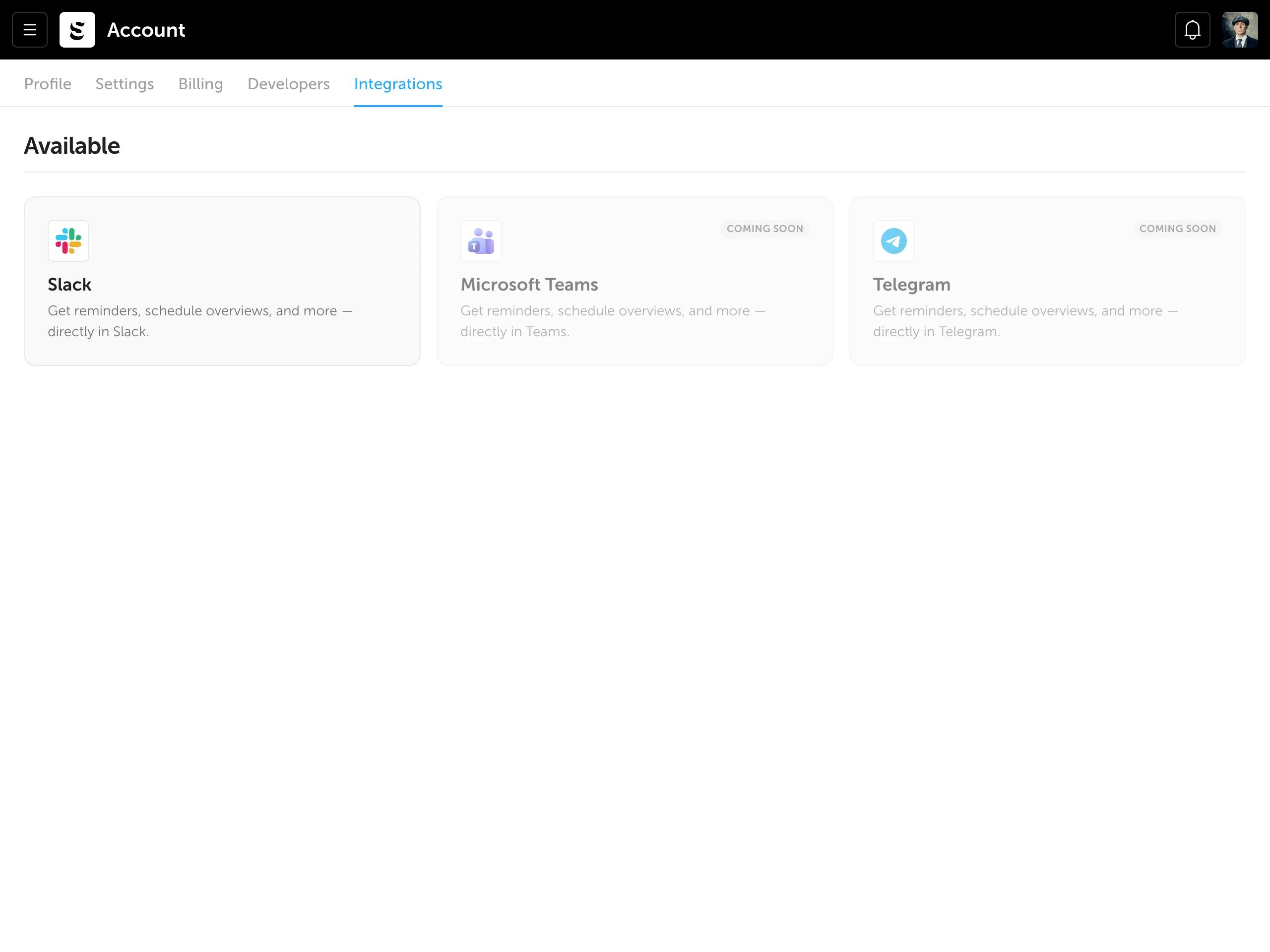
Go to Account > Integrations. You'll see all available integrations listed. Click the Slack card to begin.
Step 2: Review and connect
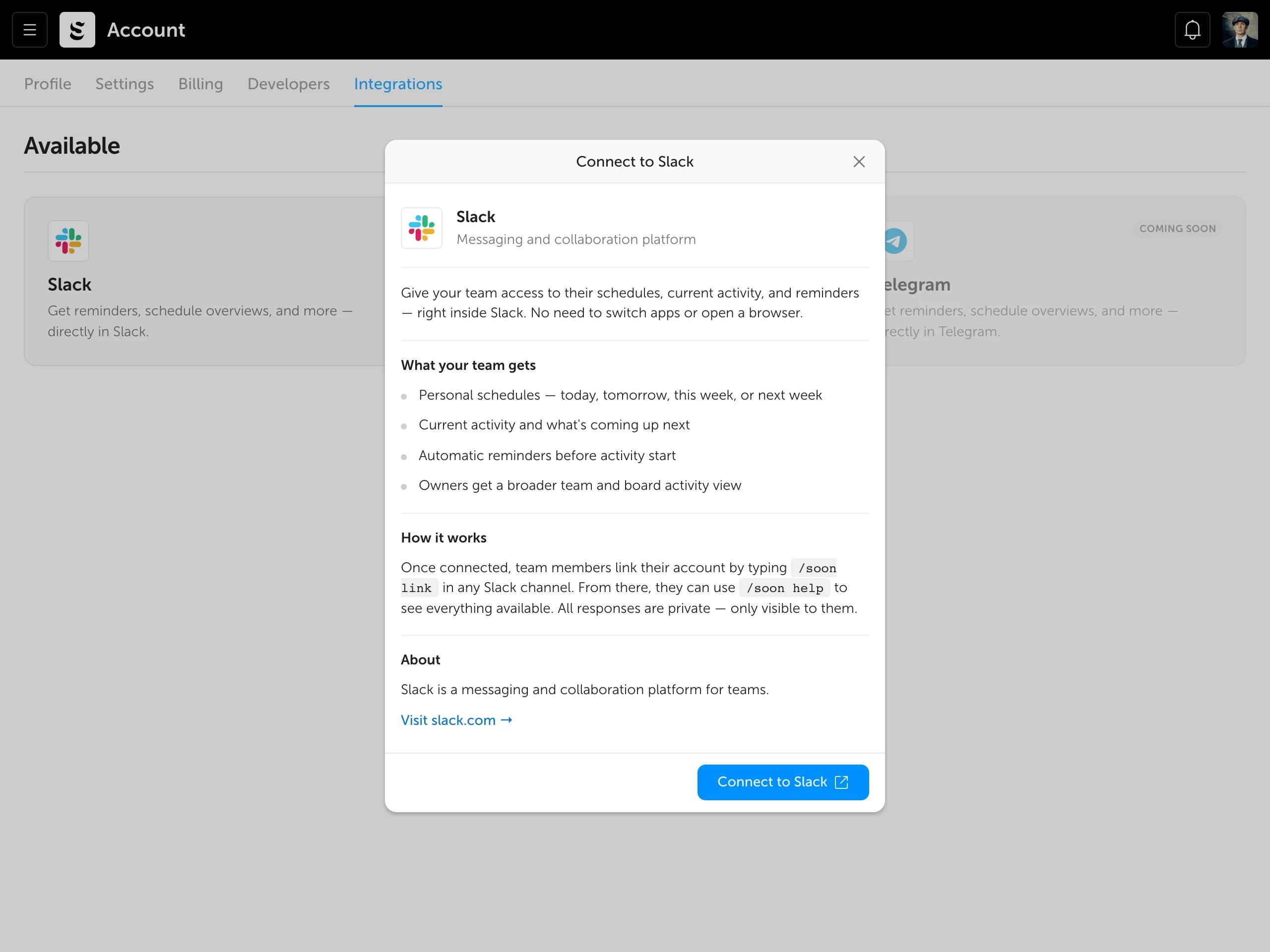
A panel opens with details about the Slack integration, including what your team gets, how it works, and a link to Slack's website.
Click the "Connect to Slack" button at the bottom. You'll be redirected to Slack to authorize the connection with your workspace.
Step 3: Confirmation
After authorizing in Slack, you'll be redirected back to Soon. A success notification confirms the connection, and the Slack card shows a green "Connected" badge. The card moves to the Connected section at the top of the page.
Tip: The redirect happens automatically. If something goes wrong during authorization, you can try again by clicking the Slack card.
3. What your team gets
Once Slack is connected to your workspace, every team member who links their account gets access to the following features, all directly inside Slack:
Personal schedules
View your schedule for today, tomorrow, this week, or next week. No need to open Soon in a browser.
Current activity
See what's happening now and what's coming up next. Stay on top of your day without leaving Slack.
Automatic reminders
Receive a reminder before each activity starts, so you're never caught off guard.
Team overview (owners)
Team owners get a broader view: team schedules, board activity, and a high-level overview of what everyone is working on.
Note: All Slack responses are private — only the person who runs the command can see the response. Your team's data stays private.
4. How team members link their accounts
After a team owner connects the Slack integration, individual team members need to link their Soon account. This is a one-time step.
Linking via Slack
In any Slack channel or DM, type the following command:
/soon link
Follow the prompts to authenticate with your Soon account. Once linked, you're ready to go.
Available commands
After linking, type the following to see all available commands:
/soon help
This will display a private list of everything you can do — schedules, activity, reminders, and more.
Tip: All responses to `/soon` commands are ephemeral — only you can see them. Feel free to use them in any channel.
5. Managing the integration
Once connected, you can view and manage the Slack integration at any time from Account > Integrations.
Integration details
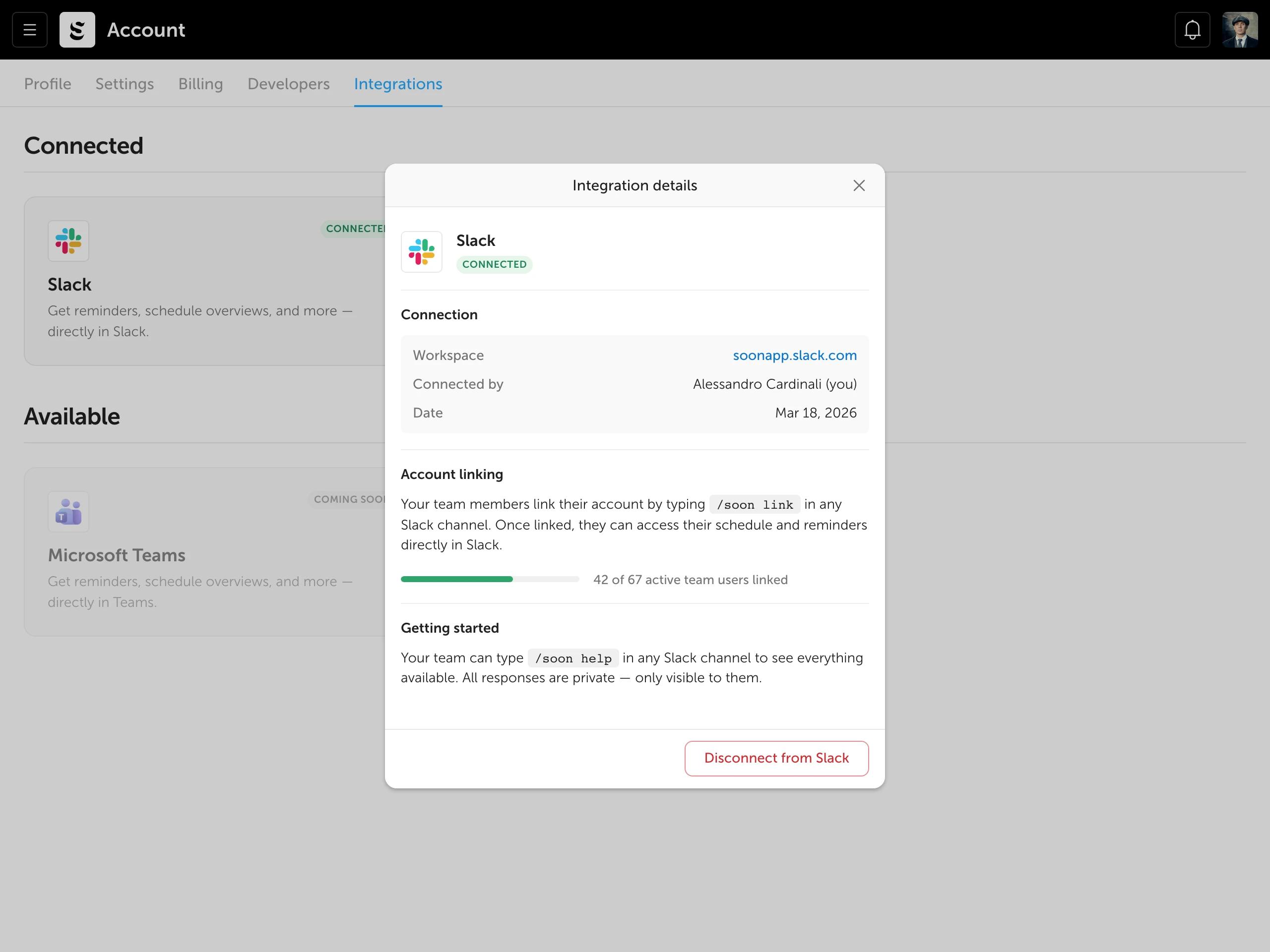
Click the connected Slack card to open the details panel. Here you'll find:
- Connection info — workspace, who connected it, and when
- Account linking — progress bar showing how many team members have linked
- Getting started — quick reference for the `/soon` commands
- Disconnect button — remove the integration (see next section)
6. Disconnecting Slack
If you need to remove the Slack integration, open the integration details and click "Disconnect from Slack" at the bottom.
A confirmation dialog will appear, warning you that:
- The connection between Soon and your Slack workspace will be removed
- All linked member accounts will be unlinked
- Team members will no longer receive reminders or be able to use `/soon` commands
Note: Disconnecting is reversible. You can reconnect at any time by clicking the Slack card and going through the authorization flow again. However, all team members will need to re-link their accounts with `/soon link`.