When your trial or subscription ends
Last updated October 25, 2026
A new Soon team starts with a free trial of 14, 30 or 60 days, depending on plan, with no card needed. Soon counts the days down in the header. When the trial or a paid subscription ends, a lock screen covers the schedule until the team Owner upgrades. Only the Owner can unlock it; everyone else is asked to contact them.
The countdown in the header
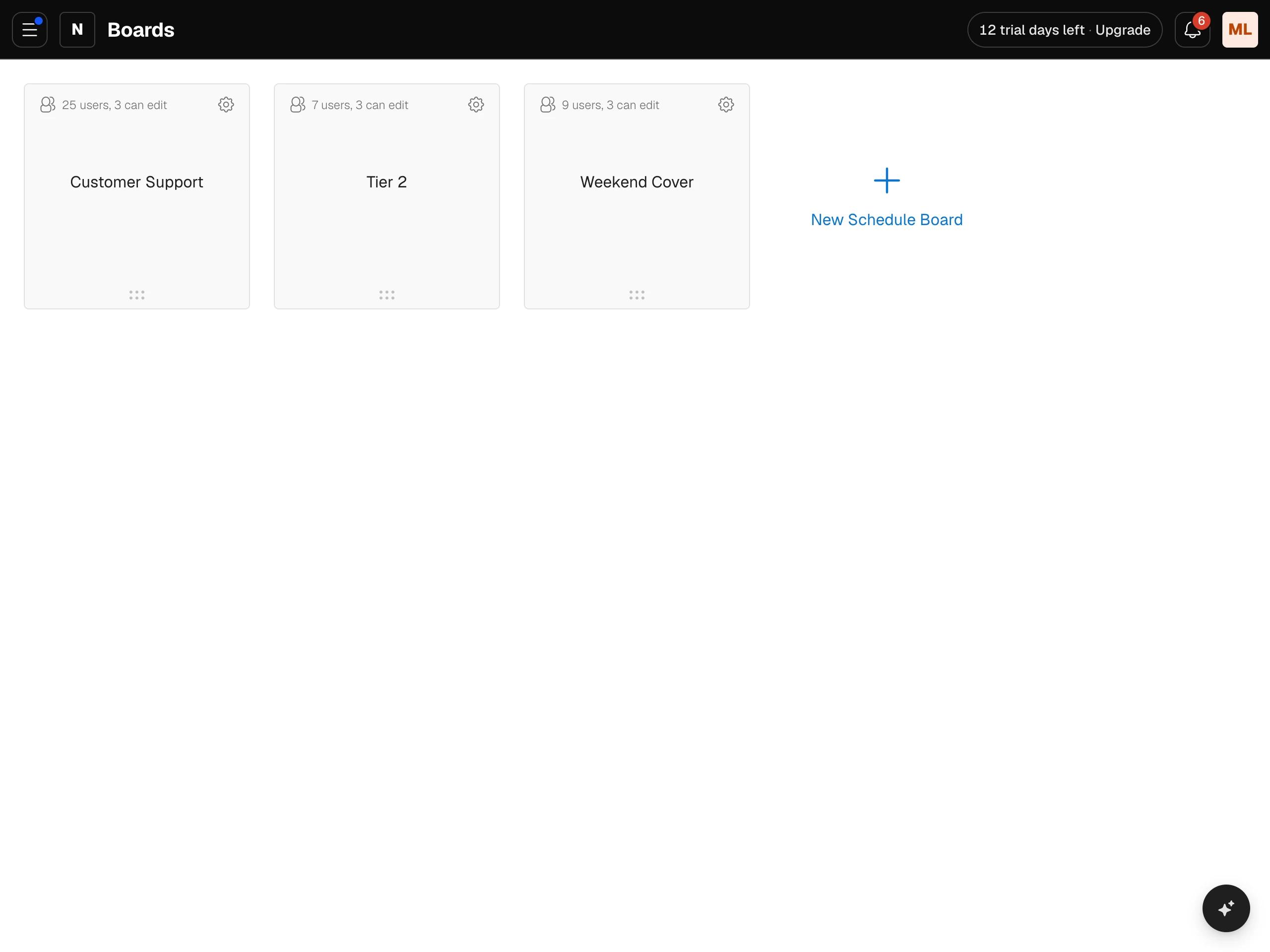
During the trial, the Owner and admins see a label in the header, such as 12 trial days left. Members do not see it.
- It is calm while there are 7 or more days left.
- It turns amber with a warning sign under 7 days, and red under 3 days.
- For the Owner it adds Upgrade and opens Billing when clicked. For admins it is information only.
After the trial the label reads Free trial ended. A lapsed subscription shows Subscription ended, with Resubscribe for the Owner. Payment failed with Action required means a payment did not go through; see plans and billing. On a narrow screen the label may shorten or disappear to make room.
During the trial, the Owner also sees Book a Demo and Delete Team at the bottom of the main menu.
The lock screen
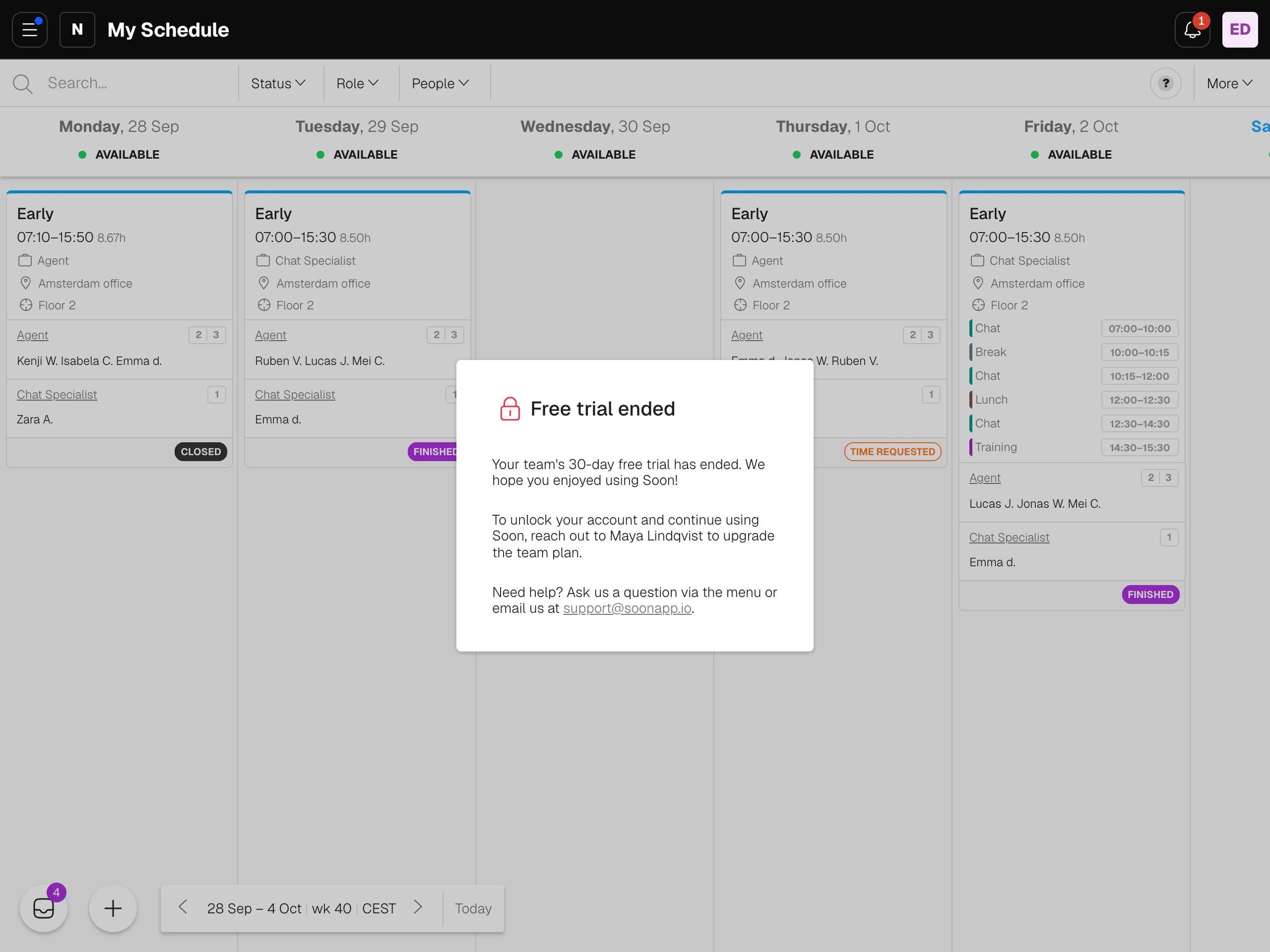
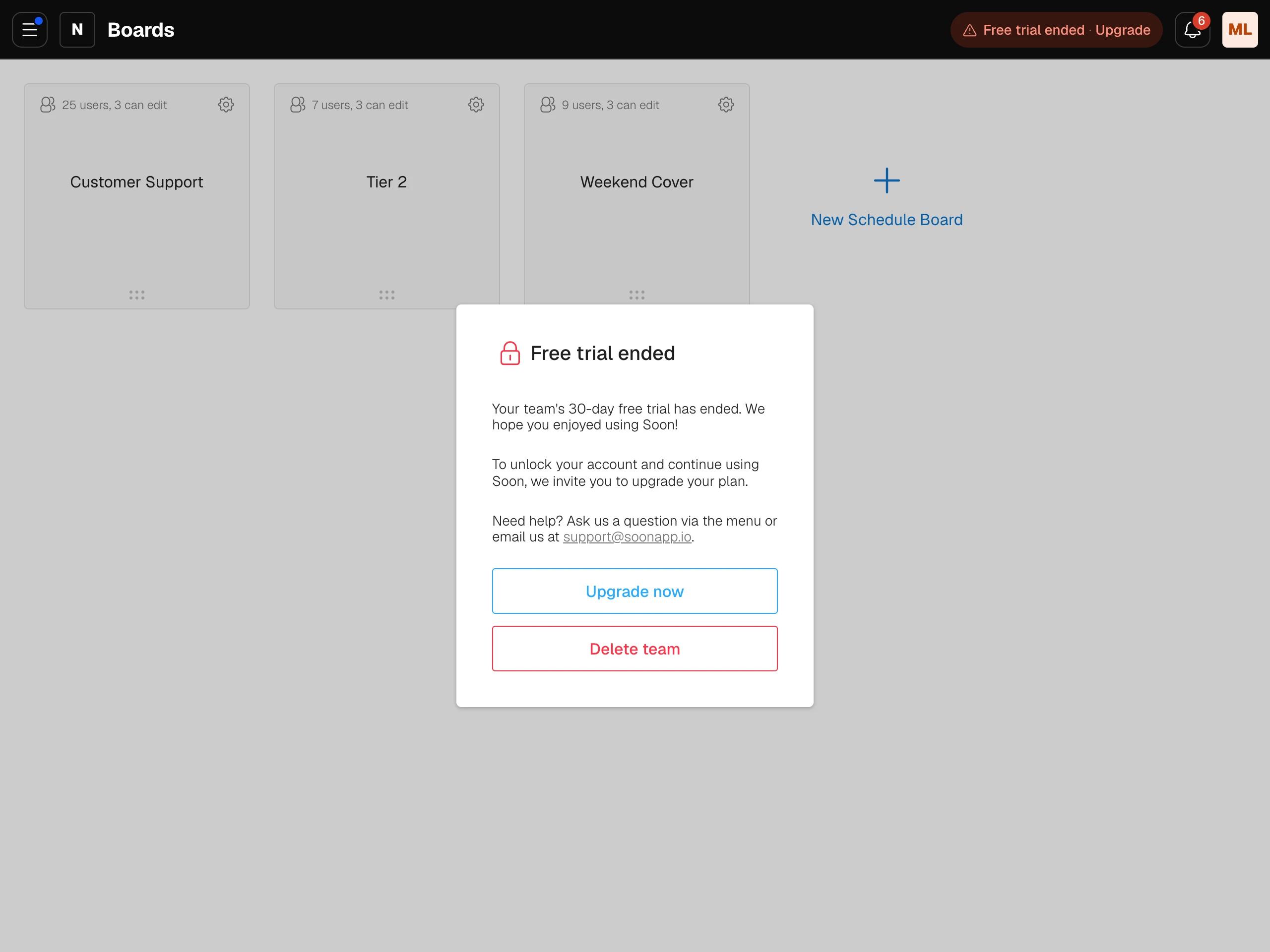
When the trial or subscription has ended, a window titled Free trial ended or Subscription ended covers the boards list, schedule boards, My Schedule and Leave. It says your team's trial or subscription has ended, and then:
- For the Owner: to unlock the account and continue using Soon, upgrade the plan. Two buttons appear: Upgrade now and Delete team.
- For admins and members: the window names the Owner and asks you to reach out to them to upgrade the team plan. There are no buttons; only the Owner can unlock the team.
Both versions end with a way to get help: ask a question through the menu, or email [email protected].
Unlock Soon as the Owner
- Click Upgrade now on the lock screen. Billing opens on the plans page.
- Pick Monthly billing or Yearly billing, then click Select plan on the plan you want.
- Complete the payment in the Stripe checkout that opens in a new tab.
If a paid subscription lapsed, Billing also offers the Customer portal, where you can update your payment method and see your invoices. Teams billed through the Microsoft Azure Marketplace manage their subscription in the Azure portal, where keeping Recurring billing on avoids an interruption. Plans and billing walks through every option.
Delete the team instead
If you do not want to continue, click Delete team on the lock screen. Soon asks why you are leaving, then asks you to type DELETE MY TEAM to confirm. Deleting is immediate and permanent: all team data and every user account in the team are removed. If someone else should run the team, transfer team ownership instead. The full steps are in delete your team.
Good to know
- If you are not the Owner, you cannot pay for the team, even as an admin. Ask the Owner, or ask them to transfer ownership to you.
- The lock screen sits below the header, so the menu stays within reach. On a phone, Account is not in the menu; use Upgrade now or a larger screen.
- The Ask the AI agent help item is hidden once the trial or subscription has ended.
- Inside the Microsoft Teams app, billing opens in your browser.